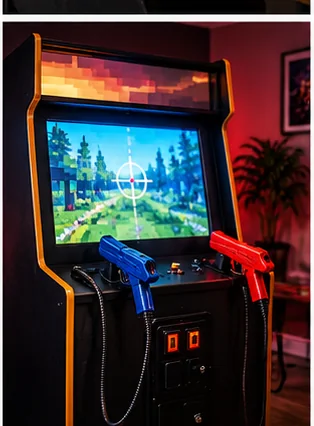
Check the gun type before touching settings
If a light gun is misaligned or unresponsive on an LCD, work through it in order: confirm the gun is built for LCD screens, fix the display settings, remove light and glare problems, redo calibration at your real playing distance, and only then suspect the hardware. Most problems end at one of the first three steps.
The biggest trap is the gun itself. Classic light guns were designed around CRT behavior. Wikipedia's NES Zapper article, a secondary source, says that gun detects a brief flash of light and can only be used on CRT displays, attributing the problem on flat panels to display lag. Guns made for modern screens use other methods. Wikipedia's light gun article describes an infrared camera in the handheld unit, and a gun that ignores the picture and reads the outline of the screen, working out aim from the size and distortion of that outline. If your gun was made for CRTs, no amount of calibration will fix it, and the answer is a different gun. The light-gun arcade setup guide compares the approaches.
The troubleshooting ladder
Work down the list and stop when the problem goes away. Change one thing at a time so you know what fixed it.
| Step | What to check | Why it matters |
|---|---|---|
| 1 | Gun and software are intended to work together | Not every gun works with every game, emulator or platform |
| 2 | Display set to its native resolution, with no zoom, stretch, crop or overscan | Scaling moves the picture away from where calibration thinks it is |
| 3 | Game mode or low-lag mode on the display | Processing delay makes shots land late or off target |
| 4 | Room light, sunlight and reflections | Glare and some lamps interfere with sensors and cameras |
| 5 | Distance, angle and screen size at the playing spot | Calibration is tied to how the gun sees the screen |
| 6 | Cable, USB port and power | A weak connection causes dropouts that look like drift |
| 7 | Calibration run, done again at your playing spot | Old calibration may no longer match the setup |
| 8 | Game or emulator settings, such as offsets and crosshair options | Per-game fixes may be needed |
| 9 | Batteries, lens or sensor cleanliness, and loose parts | Worn or dirty hardware causes erratic aim |
Display settings come first
Many aiming complaints trace back to how the TV or monitor draws the picture. Turn off anything that changes the shape or timing of the image. Look for settings named zoom, overscan, picture size, aspect, sharpness, motion smoothing and similar, and choose the option that shows the picture 1:1 without cropping. Then enable the display's game mode or low input lag mode, if it has one. The names differ by maker, so consult the display manual.
After any change to the display, redo calibration. A calibration made before you changed the screen size, resolution or position no longer matches. If you use an arcade cabinet monitor, the monitor guide explains common scaling and lag issues, and the DIY monitor guide covers choices.
Light, glare and sensor problems
Guns that rely on sensors or cameras react to the room as well as the screen. If your gun reads the screen's outline, that outline has to stay visible and undistorted, which is another reason to avoid zoom, crop and glare. Sunlight through a window, bright lamps behind you, and glossy panels that reflect lights can all confuse them. Close the blinds, turn off lamps that shine at the screen, and see whether the problem changes. A matte screen filter or a different angle can help, and it is also worth checking the maker's advice on screen brightness, since some systems prefer a bright screen and others a mid-level one.
Check the sight line too. Anything between the gun and the sensors or border, including a bezel, a plastic cover or a speaker grille, blocks the signal. In a cabinet, a bezel that hides part of the border or sensor area breaks tracking.
Redoing calibration properly
The light gun article notes that positional guns must be calibrated, usually after powering up. Calibrate from where you will play, holding the gun as you normally do. Standing closer or farther away than normal can make shots land off by a consistent amount later. Follow the gun maker's calibration routine step by step, hit each target as steadily as you can, and save the result if the system offers that. Then test across the whole screen, including the corners, where errors show first. If corners are off but the center is fine, suspect scaling or display settings. If everything is off by the same amount, the offset in the game or emulator may need adjusting.
Some games need their own calibration or offsets, so check the game or emulator menu. When shots land with a delay, look for lag settings in the display or software. If your cabinet is built for light guns, the light-gun arcade guide and the light-gun arcades category cover layout and setup.
When it may be the hardware
If settings, light and calibration all check out, look at the hardware. Fresh batteries in wireless guns, a clean lens or sensor, firm cables and a different USB port are the usual fixes. A gun that is erratic on a different screen too is the one at fault. Try it on a second display or computer if you can, and check the maker's support page for firmware updates, replacement parts and known problems with your model. If the gun is under warranty, contact the maker or seller before opening it.
Do not open mains-powered equipment or a CRT monitor to chase aim issues. Both can hold dangerous voltages. Follow the equipment manual, and use a qualified technician for anything beyond the gun itself.
A quick checklist before each session
- Display still on game mode and the same picture size
- Blinds closed and lamps off or turned away from the screen
- Gun charged or fitted with fresh batteries, and cable firmly seated
- Calibration done from where you will stand or sit
- A test shot in each corner before the game starts
This takes under a minute once it becomes a habit, and it catches most of the drift people blame on the gun. If you share the cabinet or the TV with other uses, note the display settings you need and change them back after, because a different input mode can quietly undo your setup.
Frequently asked questions
Why does my light gun not work on my LCD?
Many classic guns depend on CRT behavior and do not work on flat panels. Check that your gun is designed for LCDs, then check display settings.
Why are shots off in the corners only?
Corner errors usually point to scaling, zoom or overscan on the display. Set the picture to 1:1 and recalibrate.
Does room lighting affect light guns?
It can, especially for sensor- and camera-based guns. Reduce glare and bright lamps and test again.
Should I recalibrate after changing display settings?
Yes. Any change to size, resolution or position can invalidate the old calibration.
Can input lag cause aiming problems?
Yes. Use the display's game or low-lag mode and check the game or emulator for lag settings.
Affiliate disclosure: HomeArcadeGuide.com may earn from qualifying purchases through Amazon Associates and eBay Partner Network at no extra cost to you. Manufacturer links in the source section are research references, not tracked endorsements.